Cloud – A menace? The future of cloud computing.

If you still haven’t figured out the new look and personality (not to mention existence) of the word that used to refer to the beautiful white, sponge like stuff hanging high above your heads since the day of your birth, then you are yet to welcome a new caretaker into your lives.

Cloud computing – the buzz word these days. Everything is being taken over to the Internet. And getting that to be the maximum is what the cloud does.

The idea is just like renting space to do your work. You don’t need to worry about the infrastructure at all. You just pay the money and say you need this much memory, hard disk space, processor power and so on along with other software services that you might need like compilers and text editors. Once you’ve paid, you’ll be given all this whose maintenance will be their responsibility and you just need to concentrate only on your work, which will be simply writing code mostly.

However, something here scares me very much personally. You can visualize the cloud like a huge building where everything is available. All you have to do is to ask for a place in it, thereby which they will allocate a small portion of the building for you, walk in through the front door and do your stuff. You’re not the only one who is going to be availing this facility. So thousands and millions of people (or rather renters) are going to be there side by side with you.

Now what scares me is this. What happens if they close the front door?

People, cloud is where a few people will cluster together and provide all the services that we need. All our works, personal informations, everything will be out there with some others. What if ‘they’ decide to take over the world? It will be the end of the world as we know it. Is this a plan for 2012? Lot of questions and zero answers. Only time will tell.

I feel the whole situation like Sauron waiting for the Ring and instead of trying to destroy it, all of us are desperately trying to get it back to him.
Disk drive with UUID = # not yet ready or present. (Hibernation option missing!)

I’ve been greeted with that error message for quite a long time now on my Ubuntu loading screen and it was today that I finally fixed it.

I do not know the entire technical details of what all is going on, but I just want to share what I did so that it may help someone out there.

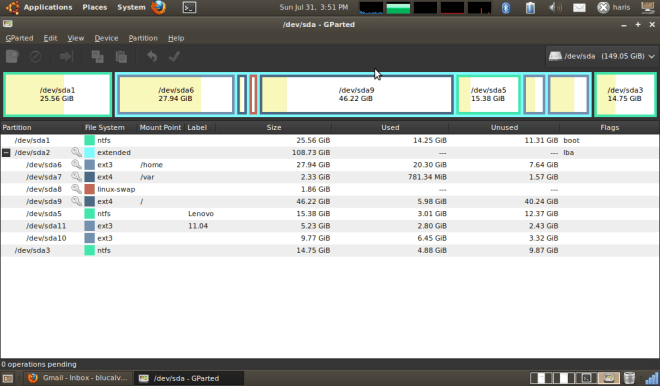
This error came the day when I installed Debian on a primary partition. My Hard disk right now is as follows:

I installed Debian by partitioning the third primary partition into two ( 7 and 7), thus having a total of four primary partitions. It worked fine. But thereafter whenever I booted into Ubuntu, I got the aforementioned error message. Not only that, but the hibernation option was missing too. Even though I copied the Debian partition back into the extended partition at /dev/sda10 (see figure) using Gparted, the problem still persisted.

I figured out it had something to do with my fstab file. You can get yours at /etc/fstab. In this file, along with the partitions present for /, /home and /var (see the figure) , it showed the same UUID that was in the error message with a comment saying that ‘swap was initially on /dev/sda8 at the time of installation’.

Heck it was still there. So somehow its UUID had got twisted. How that happened, I have no clue.

So here is what I did.

I have 11.04 installed side by side. So I mounted that and accessed its fstab file. There it had the swap partition defined well as follows:

UUID=31b658b3-4a87-454f-b514-6dd5d647a159 none            swap    sw              0       0

I copied that into the fstab file of my ubuntu 10.04 replacing the error UUID. Saved it and there was no more error message the next time I booted. Plus, the hibernation option came back. (NOTE: In order to edit the fstab file, you need to open it as root. So do sudo gedit fstab)

So all you have to do is to replace the UUID. To find out the UUID of a partition you can do:

sudo blkid /dev/sda#

and you will get that partition’s UUID. Gparted can also provide you with this information.

Hope that helps.

Recovering Grub after installing Windows, using Ubuntu.

It so happened that after installing windows on my system (which already had linux, ubuntu, installed on it), the grub menu that used to come at the beginning stopped appearing. Instead, it started to boot directly into windows.

In order to solve this problem, I did the following. Of course, I found a lot of answers to this problem on the net, but what I did worked for me fine. But be sure to sit patiently and correct it in case something does not work fine. Never give up!

(Note: I also do believe that the following works only when the ‘vmlinuz’ and ‘initrd.img’ files are at the root directory itself. Check this in step 5. In step 5, ‘vmlinuz’ and ‘initrd.img’ should be there in the ‘temp’ folder we created.)

1. Boot using a live cd of ubuntu.

2. Open a terminal and run the command

sudo fdisk -l

It lists the complete partition table of the hard disk. In there, identify which partition you have got your linux installed on. You can identify it using the drive size you had allocated for it and looking at the last column of the output which will be ‘extended’ for all of your linux partitions. The partition will most probably be something like /dev/sda5 or something. Remember this partition.

3. Create a temporary folder in your home directory (Note: You can make the temporary folder anywhere you want. I’m using the home folder just for the sake of explanation). I’m calling it ‘temp’ for now. So that ‘temp’ folder’s path will be /home/ubuntu/temp.

4. Mount your linux partition there. That is, assuming that you found your linux partition to be /dev/sda5, you mount that at the ‘temp’ folder by doing the following command

sudo mount /dev/sda5 /home/ubuntu/temp

5. If you want to check whether you have mounted the correct partition, go to your home folder and open temp. You will be in the ‘/’ directory. In there you will find ‘home’, in which your home folder’s name will be there. Once you’ve confirmed you have mounted the correct partition, do step 6.

6. You have to install grub by showing the system where to read the data from the hard disk at the beginning. Don’t worry, just run the following command

sudo grub-install –root-directory=/home/ubuntu/temp /dev/sda

The ‘/dev/sda’ corresponds to your hard disk name. Replace it by whatever the command ‘sudo fdisk -l’ command showed you.

7. You’re done. You may restart your system.

You might want to check out how I upgraded to 12.04 too!

PS: For editing the grub menu that appears, check out my post

https://sosaysharis.wordpress.com/2011/04/29/editing-grub-menu-in-ubuntu-10-04-and-above/

Files larger than 4GB not supported on FAT32.

I accidentally found out that the FAT32 filesystem does not support files larger than 4GB. It happened when I was trying to unrar the files on a DVD into a .iso file. When it was about 92% done, the error window popped up saying “No space for files”.

But I had to make that .iso file. I had to play that game because it was the latest version of the game I loved since I was four years old. Street Fighter, the name of the game.

I found out that this problem is not there with the NTFS filesystem however. So I jumped back to my ubuntu, launched gparted (an ultra powerful application for disk management) and shrunk my 33GB windows partition into 25GB. The 7GB thus gained, I converted into NTFS.

Jumped back into windows again and happily made the .iso file on the NTFS partition. 🙂

PS: Please share your views so as to why FAT32 doesn’t support files larger than 4GB.

Open source v/s Free software.

People usually think both are the same. At least I used to. Until recently when I found out that it wasn’t so. Let me try to make it clear for you.

Open source:

Open source is a development methodology where the source code of the product is made available to the public. The ideology behind this is that as more people get to look at the code, better codes will be written and as such better products will be made. As I said, it is an approach to the development of a product.

Free software:

Whereas, free software is a moral code to follow. Under this, a user is granted with four freedoms. Richard Stallman, the founder of the free software movement, puts them down as follows:

  • Freedom 0: The freedom to run the program for any purpose.
  • Freedom 1: The freedom to study how the program works, and change it to make it do what you wish.
  • Freedom 2: The freedom to redistribute copies so you can help your neighbor.
  • Freedom 3: The freedom to improve the program, and release your improvements (and modified versions in general) to the public, so that the whole community benefits

Thus free software is just the decision you personally take that “My code is free”.

————————————

Now the very interesting point is that if a closed source product is better than a corresponding open source one, the open source ideology will have failed. But whatever happens, the free software mantra never fails as long as you decide your code is free because the four rules hold always. 🙂

Editing GRUB menu in ubuntu 10.04 and above.

1. Open a terminal.

2. Type in

sudo update-grub

Type in your password.

3. Go to the directory /boot/grub. To do this type

cd /boot/grub

4. Here if you type ls, a lot of files will be there. Fortunately, we’re only interested in grub.cfg.

5. Open grub.cfg with a text editor. To do this type

sudo gedit grub.cfg &

(The ampersand sign (&) is to run the gedit program in the background while we can use the terminal for other purposes. Try executing the above command without the ‘&’ sign and you will understand)

6. In there, find the following line

### BEGIN /etc/grub.d/10_linux ###

7. From the beginning of this line, select till the end of the file. The last line of the file will be

### END /etc/grub.d/40_custom ###

8. After you have selected it, copy it. Right-click, copy will do.

9. Now go back to the terminal and go to the /etc/grub.d directory. To do this type

cd /etc/grub.d

10. In this directory, type ls to see the files present. There will be a file called 40_custom. Open this up using the following command

sudo gedit 40_custom &

11. There will be a few lines at the top. Don’t worry. Just paste whatever you copied from grub.cfg over here. Right-click, paste will do.

12. After you have pasted, look closely at it. There will be something similar to the following

menuentry ‘Ubuntu 10.04 Lucid Lynx right here!!’ –class ubuntu –class gnu-linux –class gnu –class os {
    recordfail
    insmod ext2
    set root='(hd0,9)’
    search –no-floppy –fs-uuid –set cafb13dd-92cd-4618-acfe-de02a0ca49e5
    linux    /boot/vmlinuz-2.6.32-28-generic root=UUID=cafb13dd-92cd-4618-acfe-de02a0ca49e5 ro   quiet splash
    initrd    /boot/initrd.img-2.6.32-28-generic
}

The difference will be in what is written in between the quotes. You can change that to whatever you want displayed on the grub menu.

Also for whichever entries you want removed from the grub menu, just delete the corresponding menuentry blocks from the 40_custom file. Deleting a menuentry block means deleting the block starting from the words ‘menuentry’ till ‘}’.

Once you’ve done enough modifications, save the file and close it.

13. Now the terminal is staying in /etc/grub.d itself right? Run the following command from there.

sudo chmod -x /etc/grub.d/10_linux /etc/grub.d/20_memtest86+ /etc/grub.d/30_os-prober

14. Alright you’re almost ready to go. Just do one more thing.

sudo update-grub

15. Ah good. Restart your system and you will see your own grub. 🙂 Good luck. 🙂

For more detailed description (and a description that makes much more sense too), please visit

http://ubuntuforums.org/showthread.php?t=1195275

Thank you! 🙂